#Your library
Your library is everything you have saved. Save a track from Discover, a release page, the catalog, or the Player, and it appears here ready to play.
To remove saved music, open a track's More actions menu, or the menu on an artist or album card. Confirm the number of tracks to remove. You can also select several tracks and use Remove from library. If removal fails, your library stays as it was and shows an error. A track you remove also leaves your play queue. A removed local file stays on your device but will not return on the next folder scan. Owned stems stay in your library while you hold them; removing saved music does not affect purchases or playlists.
Artist and album pages inside My Library are private groupings built from your saved or device-local music metadata. Their My Library label distinguishes them from public Resonate profiles and catalog-credit pages, even when the names happen to match.
For music saved from Resonate, use View catalog release or View Resonate profile to move from your private grouping to its public page. Public releases you have saved show Open in My Library. Device-only or mixed artist groupings use Explore in catalog, so a matching name is never presented as proof that two artists are the same person.
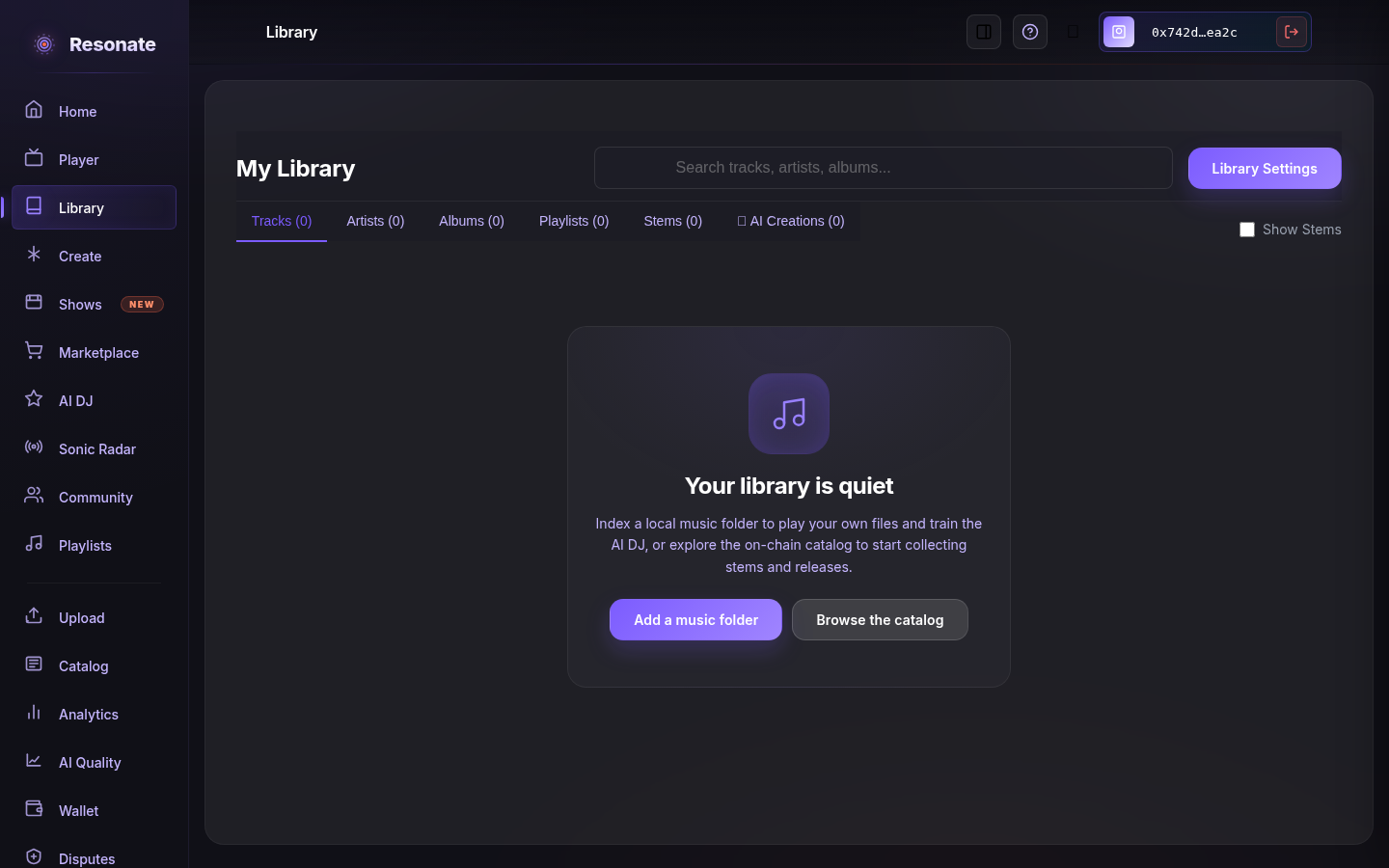
#Your stems
Every stem you buy lands in the Stems tab of your library. A new purchase can take a few minutes to show up. Stems you are selling appear there too, marked with a price tag.
- License badge
- Each stem you bought shows the best license you hold for it: Personal, Remix, or Commercial. If you bought the same stem twice, at Personal and later at Remix, it shows Remix.
- Filter
- All shows every stem. Remix-ready shows the stems you hold at Remix or Commercial. Personal shows the ones you hold for your own listening.
- Remix
- Opens the stem in Remix Studio when you hold a Remix or Commercial license.
- Upgrade to Remix license
- Shown on stems you hold at Personal. It opens the stem's page, where you can buy the Remix license if the seller offers one.
- Remix stems together
- When you own two or more remix-ready stems from the same song, one button above the list opens a single Remix Studio session with all of them.
You can also reach this tab from My purchased stems on Browse stems, or from the confirmation shown after you buy.
#Building playlists
- Open the Add to playlist action on any track, release, album, or artist page — including artist pages inside My Library.
- To add several tracks at once, select them in My Library and choose Add to playlist, or drag them onto a playlist in the side panel. Dragging a track from one playlist onto another copies it there; the original playlist keeps it.
- Create a new playlist or add the tracks to an existing one.
- Reorder and manage tracks from the Playlists tab in your library. Playlist covers, including public playlists you have saved, show a mosaic of the artwork inside.
Adding a track to a playlist does not save it to your library, and it doesn't need to: catalog tracks play from a playlist whether or not you have saved them. Removing a track from your library leaves your playlists as they are.