#The Discover home page
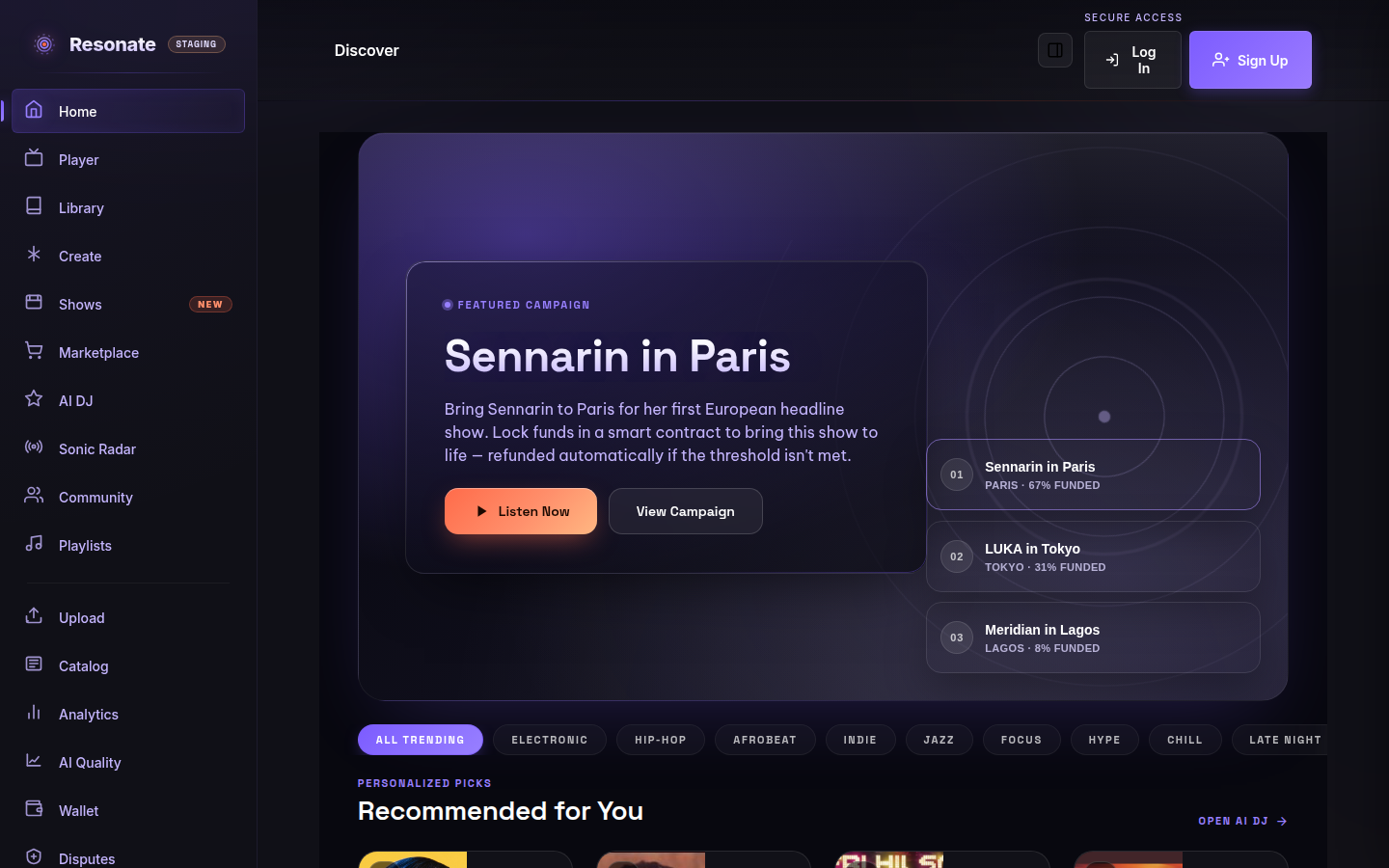
Home is your starting point. A featured Shows campaign sits at the top (when none is open for pledges, you'll see an invitation to start one instead), followed by the Tuner — genre and mood chips with a small energy meter — then your personalized feed as a set of shelves like "Because you save a lot of Afrobeat", "New from artists you play", and "Trending in your genre". Each shelf says in plain words why it's there, and the reasons are always about your taste in general (a genre you save, artists you play), never a list of exactly what you played and when.
Every section below the top banner is a shelf: swipe it sideways on a phone, or use the arrow buttons that appear on a computer when there's more to see. On a personalized pick, the round AI DJ button starts a session seeded by that track (on a phone it's always shown; on a computer it appears when you point at the cover).
Every visit also includes a small "Step outside your lanes" row of new releases that almost nobody has played yet, one track from each, so your feed never becomes an echo chamber, and rows rotate between visits instead of repeating the same picks. If what you've been playing lately differs from the genres you asked for, a "Because you've been playing" row appears right after your saved-taste row. It comes from your recent listening, so it changes as your listening changes, and the genres you saved in Taste Memory always come first. If you're new and we don't know your taste yet, the feed says "Catalog signal" honestly — play a few tracks, or open Settings → Taste Memory and tell us what you want more of, and it gets personal.
#Trending Now & Top Artists
The Trending Now and Top Artists rails rank tracks and artists by what listeners actually played over the last 7 days — completed listens and playlist saves, not upload dates. Each card shows its chart position and how many people listened.
These charts are honest: if not enough different people have listened yet (overall or in a genre you selected), the rail says "not enough listening yet" instead of showing a made-up ranking. Charts fill in as the community listens more.
Artist links follow the credited profile when the music has a clear artist identity. If a credit could refer to more than one artist, it opens a catalog page for the credited name until the identity is reviewed.
#Browse by mood & vibe
Use the Tuner near the top of Home: tap a genre chip (Electronic, Hip-Hop, Jazz, and more) or a mood chip (Focus, Hype, Chill, Late Night, and more). The Tuner tells you how many catalog releases match, its energy meter shows the pace of that pick, and the Start session button begins a vibe session that queues matching tracks and hands off to your AI DJ. With "All Trending" selected, the same spot opens the AI DJ instead. Genre chips also re-rank Trending Now and Top Artists for that genre, and the shelves below retune to your pick.
#Stem Lab, live events & your studio
Stem Lab shows real releases whose tracks have been split into separate layers. Each release has a small channel strip — Vocals, Drums, Bass, and so on, only the layers that actually exist. Select a channel to open the release in the mixer with just that layer playing, or choose Open mixer to hear everything and balance it yourself. The mixer needs a connected wallet; signed out, the link opens the release page.
Upcoming Live Events lists fan-funded shows as ticket-style cards: the show date, the venue or city, a funding bar with the percentage raised, the number of backers, and the days left to pledge. Selecting a card opens the campaign page, where you can review the terms before backing it. Pledges are held in escrow and refunded if the goal isn't met.
Further down, Recently Added lets you browse and search the newest catalog releases, artists, stems, and playlists, and Your studio shows the artists and releases you manage once your wallet is connected.
#The full catalog
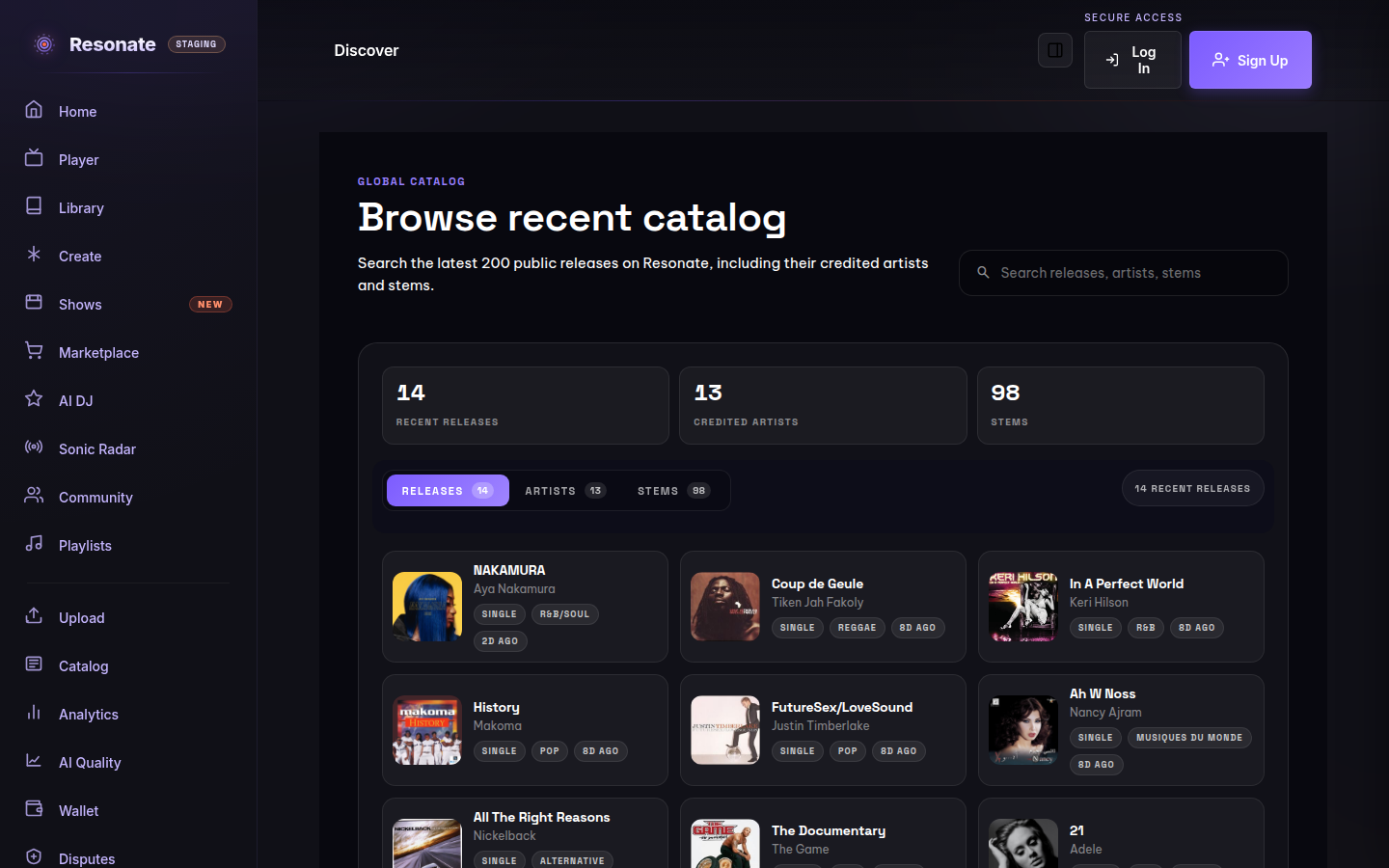
Open Catalog to browse the latest public releases, their stems, and public playlists curated by other listeners. Switch between Releases, Artists, Stems, and Playlists, and search by title, artist, stem, or playlist name. Opening a playlist card lets you press Play or add the whole playlist to your library.
Releases appear as a grid of cover art with the title, the credited artist, and the release type, genre, and when it was added. Hover over a cover and press its play button to start listening right away (on a phone the play button is always shown); select the title to open the full release page. Any AI-contribution label stays visible under each release. Use the genre chips above the grid to narrow releases to one genre — they work together with search.
Artists show their latest cover, how many releases and stems they have, and their main genre. Stems are grouped by track: each row lists the parts that track offers (Full mix, Vocals, Drums, Bass, and so on) and opens the release mixer. Each release cover also has buttons to add the release to a playlist or save it to your library, both here and in the smaller Recently Added preview on the home page.
#Understanding AI labels
- AI-assisted
- The artist declared that AI contributed to part of the track, such as vocals, instruments, writing, production, or post-production.
- AI-generated
- The artist or Resonate's own creation tools declared that the track was fully AI-generated.
- AI disclosure unavailable
- The track is older or its declaration is incomplete. This does not mean Resonate verified it as human-made.
Fully AI-generated tracks stay available through the catalog, search, artist pages, playlists, direct links, playback, and Browse stems. They are not placed in personalized recommendations, AI DJ picks, Trending, or the activity used to rank Top Artists. AI-assisted tracks remain eligible for those discovery surfaces and keep their label.