#AI DJ sessions
The AI DJ plays a continuous set tailored to you. Pick a session intent — for example a focused flow for deep work or a high-energy set — and the DJ keeps choosing what comes next, explaining why each pick fits.
- Go to Home and find the Your AI DJ section. Sign in if you haven't already; signed out, you can still see the session intents.
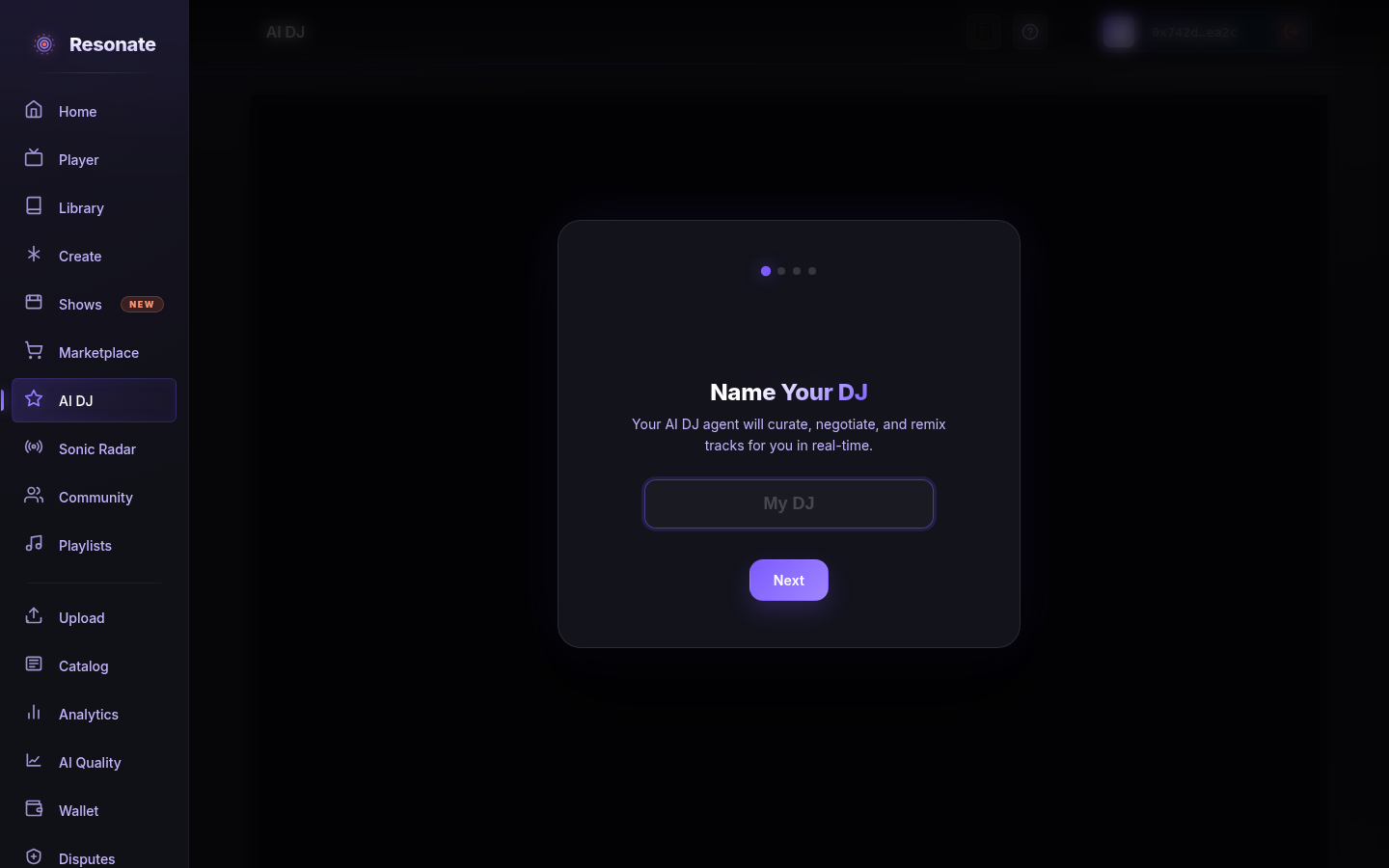
- The first time, set up your DJ from there or in Settings → AI DJ, where you give it a name and choose your vibes. You can change them later in the same place.
- Under What's this session for?, type a sentence about the session, or choose one of the quick starts, then start the session. Starting a session from the Home tuner or a feed prompt begins it in place. What you type or choose only steers that session: the vibes you saved in Settings → AI DJ are kept as they are.
- When you start a session from the Your AI DJ section, the DJ takes a few seconds to choose its first picks and then plays them in the player. If it finds nothing to play, you'll see a message; try Next AI Pick or another intent.
- Watch the status, activity and history in the same section. Use Next AI Pick to get a new pick, which starts playing right away, and your feedback shapes future picks. On a small catalog the DJ keeps going after it has played everything that fits your filters: it first allows more tracks by the same artists, then picks new tracks from the rest of the catalog. It never repeats a track in the same session. If nothing in the catalog matches your filters at all, it says so instead of playing something unrelated. If the AI curator is unavailable for a moment, the DJ still picks from your taste and filters with its built-in rules, and the pick says it is a rule-based pick. When the AI curator returns fewer tracks than a full set, the DJ fills the rest with its built-in picks for the same filters, so a session never comes up short while matching tracks remain.
- Keep listening wherever you are in the app. As the queue runs low, the DJ adds more picks, for as long as the session is live. Stop the session whenever you like; stopping it means no new picks are added (what is already in your queue stays).
You can also just start a session without typing or choosing anything; the DJ then draws on your saved vibes and taste.
By default the AI DJ leaves out tracks marked explicit. Turn on Include explicit tracks under What's this session for? to let them in; the setting is saved to your DJ and applies from the next pick, including in a session that is already running.
Session History in the Your AI DJ section lists your most recent sessions. Under each date you see what the session asked for: the preset, genres, moods, energy, tempo, My Mix, and Explicit on when you allowed explicit tracks, or Saved taste when you picked no filters. After Update session it shows the latest filters. The sentence you typed is never shown or saved. Open a session to see the tracks it picked and why. The session and track counts include every session you have had, not only the ones in the list.
#Blend your listening lanes with My Mix
Once repeated listening has revealed different sides of your taste, My Mix appears first among the AI DJ quick starts. It blends your visible listening lanes, giving more room to stronger habits and the ones that fit the broad time of day. If it is not there yet, keep listening or choose any of the other quick starts.
- Choose My Mix, then remove a lane, boost its share, or add a genre or mood from the catalog. You can make the same edits while listening to change the upcoming picks.
- Edits stay in this session. Choose Save to Taste Memory only when you want to keep a preference for future recommendations.
- The DJ still leaves room for new human artists and keeps variety across artists. Each pick explains which lane it fits.
- If there is not enough new music for a lane, the DJ tells you. Other lanes may fill the space, but those picks never count as matching the missing lane.
My Mix keeps you in a style for a few tracks, then uses your listening habits to choose where to go next. With little listening history, it starts with your strongest styles and eases between tracks when energy has been measured. Basic My Mix is free. Saved named mixes, energy changes within a lane, and advanced length or ordering controls are not available yet.
#Describe the session in your own words
Type what the session is for, for example "Warm deep house around 122 BPM for cooking". The DJ reads it and shows what it understood as filter chips: genres, moods, energy, and a tempo range. Not sure what to type? The quick starts fill in the same kind of chips for you. Under Genres are everyday choices: Hip-Hop & Rap, R&B & Soul, Pop Hits, Afrobeats & Amapiano, Reggae & Dancehall, Latin & Reggaeton and World Music. Under Moods are Neural Flow (focus), Pulse Raid (high energy), Liquid Sky (chill), Abyss Shift (dark) and Static Calm (calm). Choose or point at one to see what it's for and what you'll hear before you start. The genres and moods you choose for this session receive priority over your usual listening taste, while your hidden and downranked preferences still apply. Your usual favourites can fill gaps when the catalog has few matching tracks. The DJ does not understand artist names yet, so "like Beyoncé" shows up under Didn't catch; name a genre instead.
- Remove a chip with its × to drop that filter, or change the energy chip between low, medium and high. Any change you make is yours: the chips no longer count as a quick start.
- While a session is live, editing a chip re-plans the upcoming picks. The tracks you've already heard, the one playing now, and anything you queued yourself stay as they are; the DJ's not-yet-played picks are replaced with ones that follow your filters. Rapid edits re-plan once. Use Update session to apply what you typed straight away.
- Didn't catch lists parts of your sentence the DJ couldn't turn into a filter. Rephrase them or add a filter by typing again.
- Not used for listening lists things you mentioned, such as a key, stems, a license, a price, or verified human artists only, that don't apply to a listening session. They are shown so you know they were left out; they have no effect on the DJ's picks.
- While a session is live, the DJ notes when its picks only partly match, for example Only 1 of 5 picks matched 120–125 BPM. A tempo only counts for tracks whose tempo has been measured, so some good picks may not count toward it.
#Sonic Radar
Sonic Radar is your discovery journal — the tracks that resonated with you. A track resonates when you play it through to at least 90% and then replay it or save it within seven days. Sonic Radar only lists music you have actually listened to, and it never shows prices.
- At the top, two weekly numbers: resonant discoveries this week, and new artists this week. A discovery is a resonant track by an artist you had not listened to before.
- Below, your resonant tracks are grouped by AI DJ session, or by day when you listened on your own. Each track shows a short, general reason it fits you, whether you replayed or saved it, and a New to you label for a first-time artist.
- Each artist gets one suggested next step on their first track: visit their artist page, or see their open show campaign when they have one. Open the page or campaign only if you want to; nothing happens automatically.
- Use Add to Playlist on a track or a whole group to keep the music.
At the top, New from artists you discovered lists recent releases from artists whose music resonated with you, up to two tracks per artist, leaving out anything you have already played or saved. Play a track or save it straight from the card.
Above your journal, an Almost there section lists tracks you played through in the last seven days that have not resonated yet. Each one shows how long you have left to act on it, and a New to you label for a first-time artist. Press Save on a track you liked, or press Play to hear it again, within seven days of finishing it, and it joins your journal. Saving also adds the track to your library.
On the AI DJ page, a line under the controls tells you how many tracks have resonated with you recently and how many new tracks from artists you discovered are waiting, or how many you played through are one save away. Open it to see them on Sonic Radar.
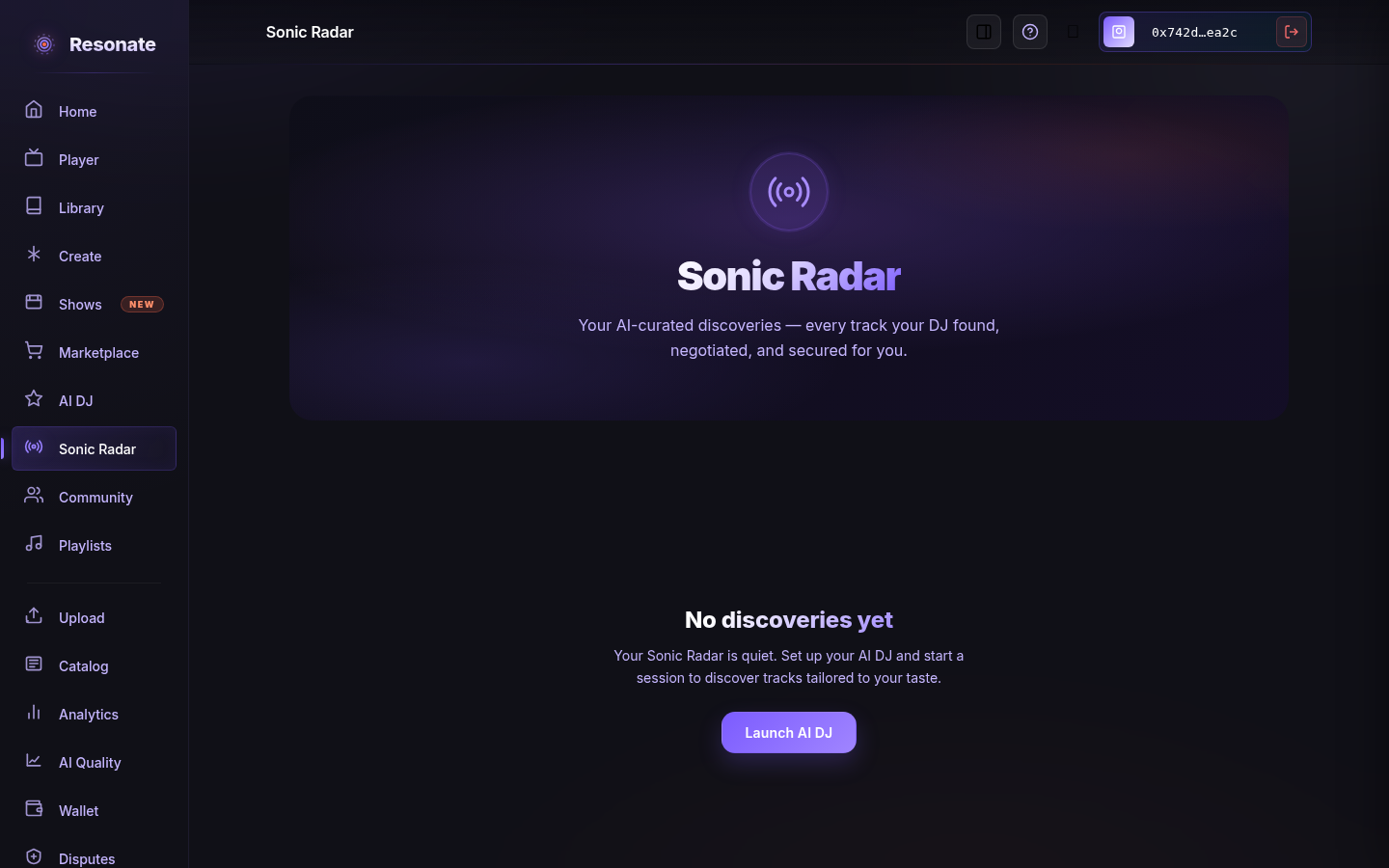
If nothing has resonated yet, Sonic Radar says so and offers a way to start a session. Play a track all the way through, then save or replay it, and it will show up here.