#Build a crate
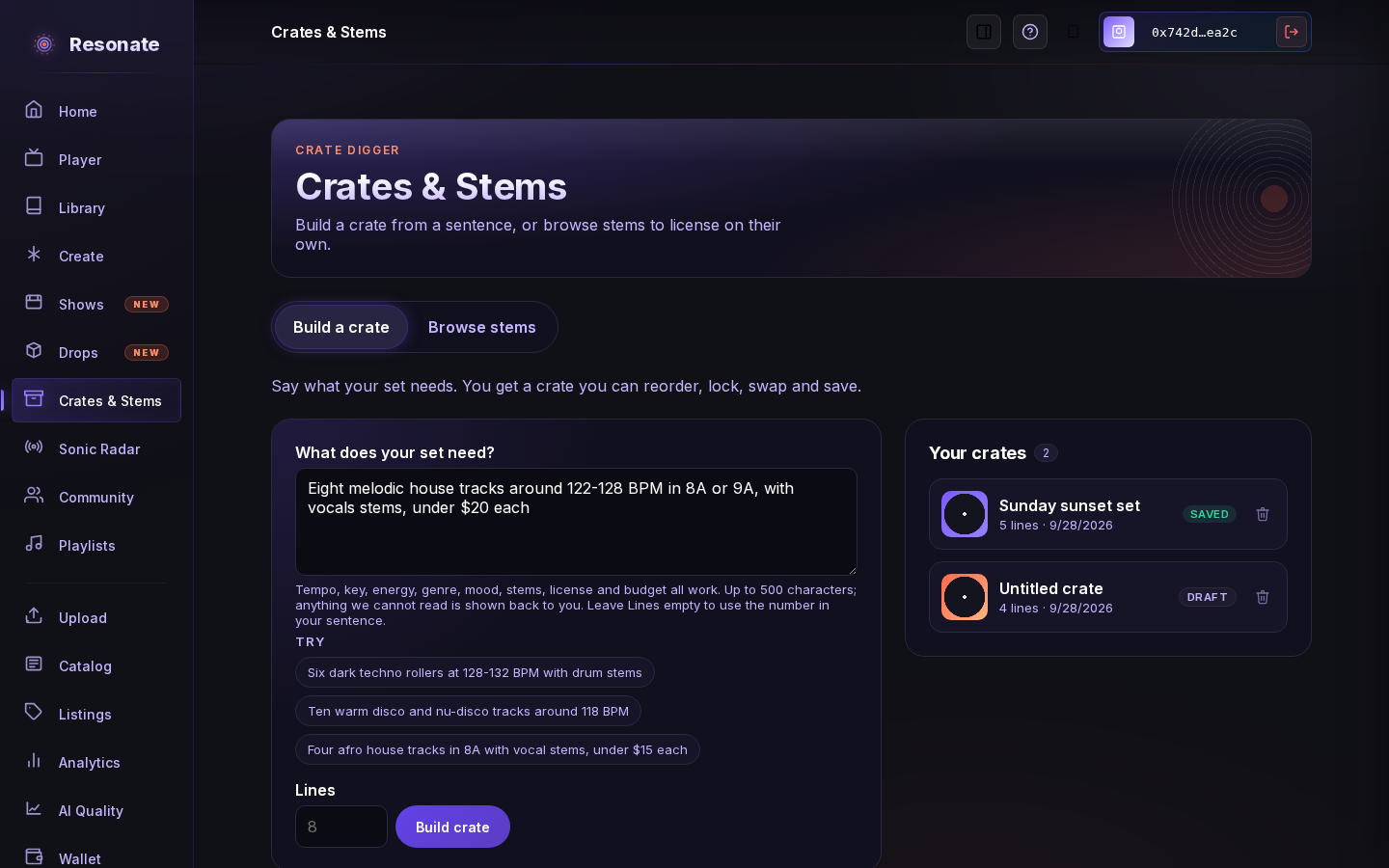
Crate Digger lives under Crates & Stems in the sidebar, on the Build a crate tab (you need to be signed in). It turns what your set needs into a crate of tracks. Type it in your own words, for example the tempo range, the key, how much energy you want, the stems you need and what you can spend. Choose how many lines you want, from 1 to 25, in the Lines box or in your sentence ("4 tracks"). Leave Lines empty to use the number in your sentence, or 8.
- Open Crates & Stems, stay on the Build a crate tab and describe your set. To start from an idea, tap one of the examples under the box, then edit it to fit your set.
- Choose how many lines you want, or leave Lines empty to use the number in your sentence, and press Build crate.
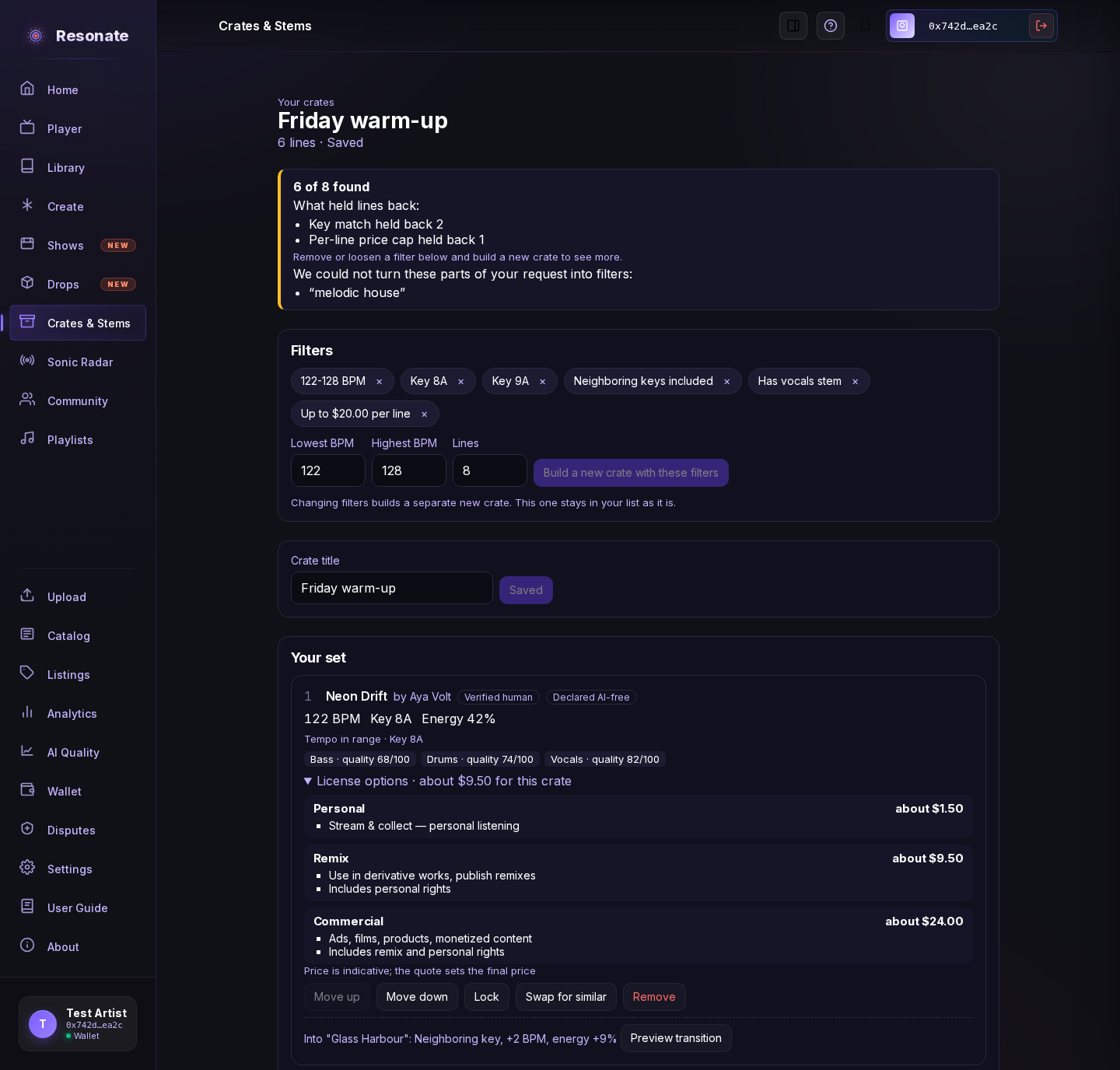
- Check the banner at the top of your crate. It tells you how many tracks were found out of how many you asked for, and which parts of your request held tracks back.
- If part of your request could not be understood, it is shown back to you word for word so nothing is silently ignored.
- To remove a crate you no longer need, press the bin button on its card under Your crates and confirm. The crate and its lines are deleted, stems you already bought stay yours, and a crate cannot be deleted while a purchase from it is still going through.
You can also start from a track you like. On a stem page, choose Start a crate from this track to get a crate of tracks that sit close to it.
#Browse stems and add to a crate
Crate Digger lives under Crates & Stems in the sidebar, with two tabs: Build a crate and Browse stems. Browse stems is open to everyone, even without signing in. Every listing there has an Add to crate control.
- Open Crates & Stems and choose the Browse stems tab.
- Choose Add to crate on a listing you like. You need to be signed in for this.
- Pick one of your crates to add the track to it, or choose New crate from this track to start a fresh one.
If the track is already in that crate, or the crate is full (a crate holds up to 25 lines), you are told and nothing changes.
#Shape your crate
Your crate is ordered like a set, moving through energy and keys that fit together. Make it yours:
- Move a line up or down with its buttons.
- Lock a line to keep it exactly where it is. Locked lines stay put when you move other lines around them, and they are not swapped out.
- Swap for similar replaces a line with another track that fits the same filters. If nothing fits better, you are told and the line stays.
- Remove a line you do not want. You are asked to confirm first.
- Give the crate a title and press Save crate. Changes are kept only when you save.
The filters above your crate show what it was built with. Remove a filter or change the tempo range or number of lines, then build a new crate from them. Your original crate stays in your list.
#What each line shows
- Tempo, key and energy
- Measured from the audio. When something could not be measured it says unknown instead of guessing.
- Stems
- The parts you can license, such as vocals, drums or bass, each with a quality score where one has been measured.
- License options
- For each license type, what it lets you do and an indicative price. If a license has no standard terms yet, the line says so and asks you to check the listing before buying.
- Unavailable
- A track that is no longer available stays in your crate, clearly marked, until you remove or swap it.
#Preview a transition
Between two lines you can press Preview transition to hear a short crossfade from the end of one track into the start of the next. The preview matches the two tempos a little, within a small limit, and blends over about eight beats. It only mixes the two tracks' own audio, and nothing is generated or saved. Lines without a preview available do not show the button.
#Get a quote and buy
At the bottom of a saved crate, Buy this crate prices the stems you want and lets you buy them all with one signature. Nothing is bought until you approve the exact stems and the total.
- Save your crate, then press Get a quote. A quote prices the crate as it is saved.
- Check the quote. Each line shows its license, what that license lets you do, and each stem with its price, the share that goes to the artist side and the platform fee. Change a line's license or switch stems on or off and the quote is priced again.
- Stems that cannot be bought are listed with the reason, for example sold out, expired or not for sale at that license. They are not part of the total.
- Look at the total in each currency and in dollars. If your crate has a budget and the quote is above it, you are told.
- Press Approve and buy. A confirm step lists exactly what will be bought and the total. Press Confirm and sign and approve once with your passkey.
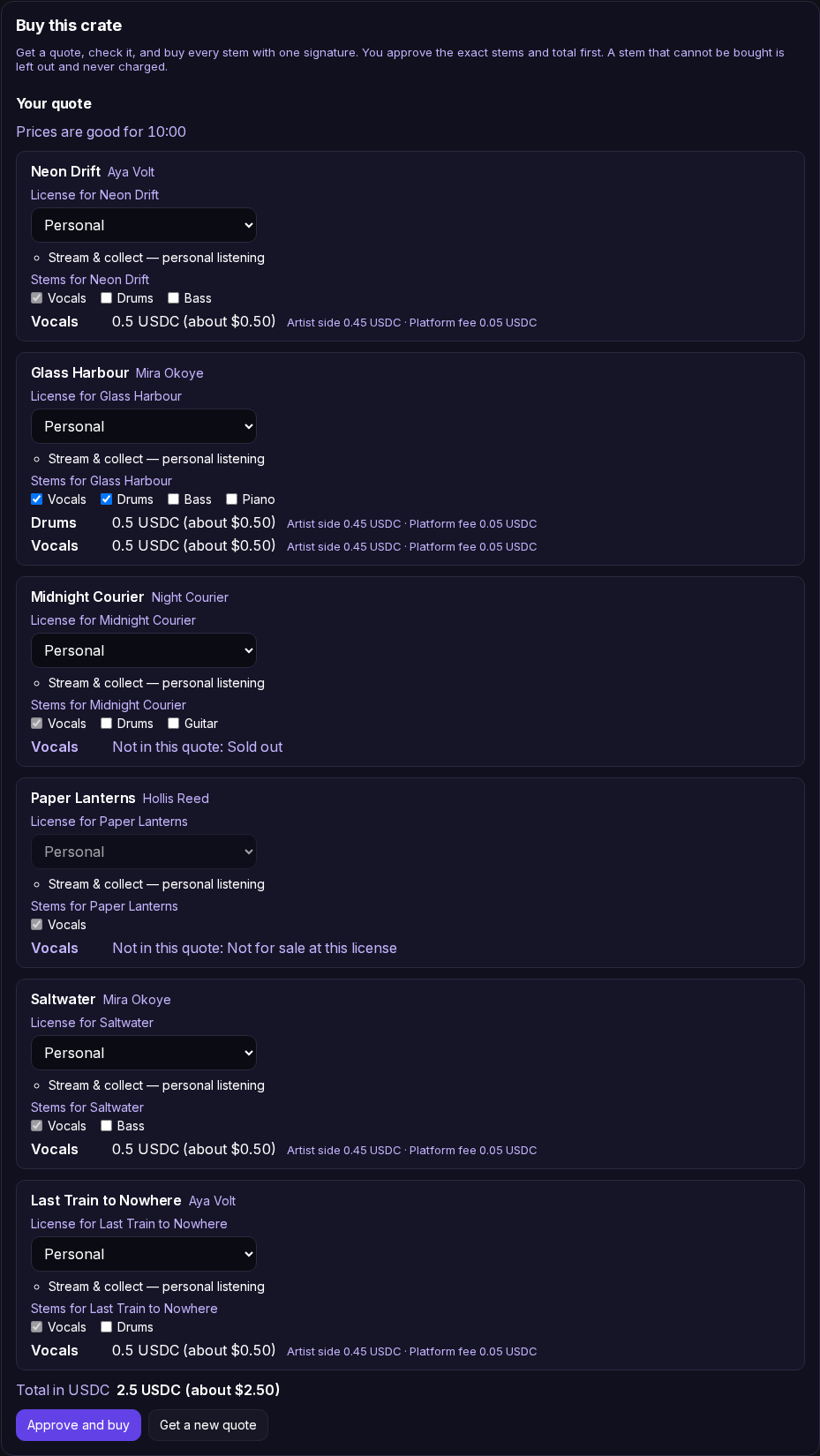
A quote is good for about ten minutes. When it runs out, press Get a new quote. Before you are asked to sign, every stem is checked against the network again. If something changed, for example it sold out, the price moved, or your balance does not cover every stem, you are shown what was left out and why, and asked whether to buy the rest. Nothing is sent until you say yes.
When the purchase is confirmed, you see a receipt for each stem: bought, not bought, or left out with the reason, and a link to the transaction. Reopen the crate later and the receipts of your latest quote are still there. If it says it is still confirming, press Check again in a minute.
#Export to rekordbox or Serato
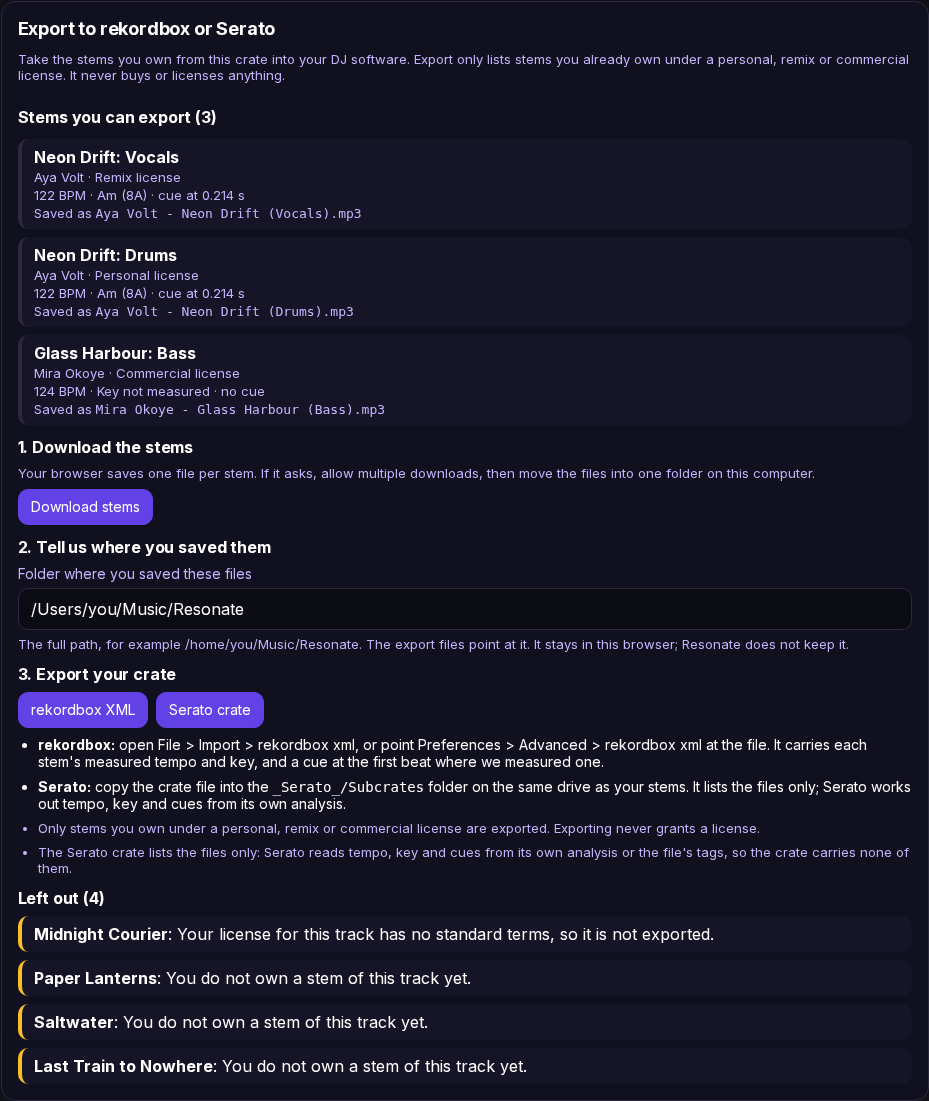
Below the quote, Export to rekordbox or Serato takes the stems you already own from this crate into your DJ software. It lists only stems you own under a personal, remix or commercial license. Exporting never buys or licenses anything, and a track you have not bought is shown under Left out with the reason.
- Press Download stems. Your browser saves one file per stem, named with the artist, the track and the stem. If it asks, allow multiple downloads.
- Move those files into one folder on your computer.
- Type that folder in Folder where you saved these files, for example /Users/you/Music/Resonate on a Mac or C:\Users\you\Music\Resonate on Windows. It is remembered in this browser only; Resonate does not keep it.
- Press rekordbox XML or Serato crate and save the file.
- rekordbox
- In rekordbox choose File > Import > rekordbox xml, or point Preferences > Advanced > rekordbox xml at the file. Each stem comes with its measured tempo and key, and a cue at the first beat when we measured one. Nothing is guessed: a stem without a measured tempo or first beat has no cue.
- Serato
- Copy the crate file into the _Serato_/Subcrates folder on the same drive as your stems. The crate only lists the files. Serato works out tempo, key and cues from its own analysis, so they do not come from Resonate.
#Watch a crate
Once a crate is saved, Watch for new releases can tell you when a new track fits its filters. Choose Notify me and how long to watch (30 days, 90 days, 180 days or a year). When a newly released track fits every filter, you get a notification that opens the crate, and the track appears under Recent matches with a link to its release.
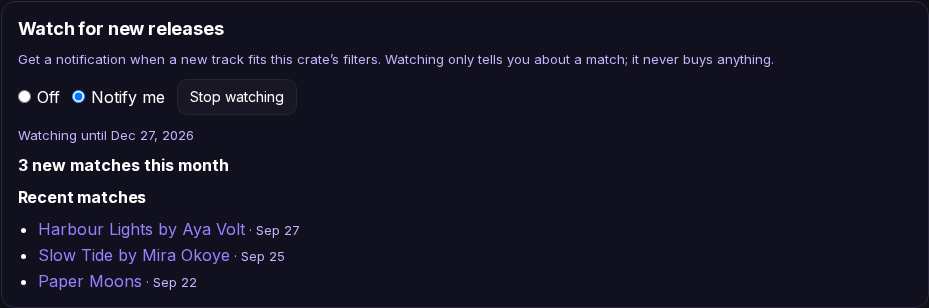
- Save the crate. A draft crate says Save the crate to watch it.
- Under Watch for new releases, pick how long to watch and choose Notify me.
- To stop, press Stop watching at any time. Watching also stops by itself on the date shown.
#What is coming soon
Building, editing, buying, exporting and watching a crate for new matches works today. Buying a match automatically, within a limit you set, is not available yet: watching only notifies you.