#What you need to remix
Remix Studio opens for a song only when you have the right to remix it. In practice that means you bought the stem at the remix license tier (or settled a remix-tier listing), the song is in good standing, and the artist allows remixing.
You can also start from your library. In Library › Stems, stems you hold at Remix or Commercial show a Remix button, and stems you hold at Personal show Upgrade to Remix license. When you own two or more remix-ready stems from the same song, Remix stems together opens one studio session with all of them loaded.
#What is a remix here?
Every song on Resonate is split into its parts, called stems: usually the vocals, the drums, the bass, and the other instruments. A remix is your own version of the song, made by changing how those parts sound and when they play. You never change the artist's original; your remix is a new version that credits them.
When you open the studio, you see four areas. The numbers match the picture below.
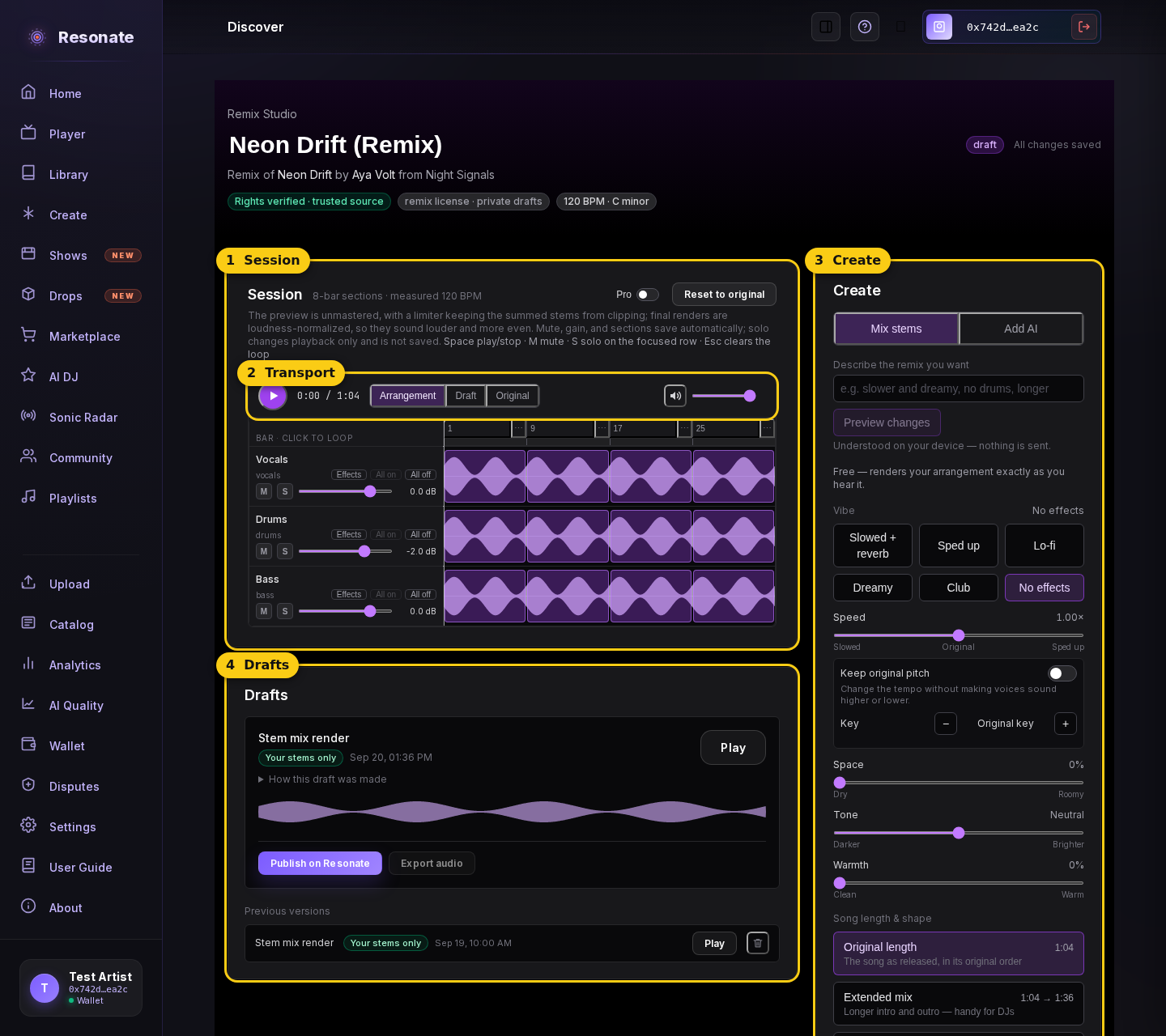
- 1 · Session
- One row per stem, with its sound drawn as a wave across the song. This is where you hear and arrange the parts.
- 2 · Transport
- Play and stop, the time, the switch between your version and the Original, and a Volume slider for your device.
- 3 · Create
- Where you change the sound: describe what you want, pick a vibe, or add AI.
- 4 · Drafts
- The finished mixes you've made, ready to play, publish, or export.
#Your first remix, step by step
- In the Create panel, keep "Mix stems" selected and pick a vibe under Vibe: Slowed + reverb, Sped up, Lo-fi, Dreamy, or Club.
- Press Play (the round button in the transport). Your changes play right away.
- Press Original in the transport to hear the song as released, then Arrangement to come back to yours. Compare at the same point in the song.
- Happy with it? Press "Render mix" at the bottom of the Create panel. Your mix appears in the Drafts panel after a short wait.
- In Drafts, press Play to check it, then "Publish on Resonate" to share it as a remix release in your catalog.
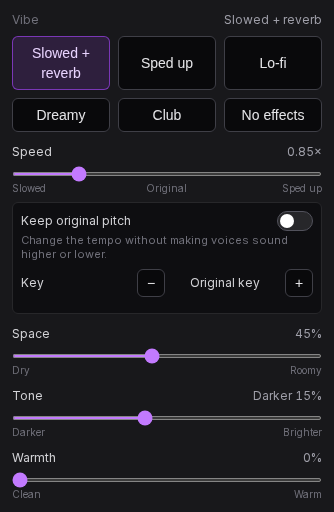
- A vibe is a starting point. It moves the Speed, Space, Tone, and Warmth sliders, and you can nudge any of them after.
- No effects takes every effect off again.
- Your changes save by themselves. "All changes saved" at the top tells you so.
- The Volume slider in the transport only changes how loud the studio plays on your device. It doesn't change your remix.
#What's free and what uses credits
- Free: vibes, effects, arranging, changing the song's length, tempo and key, the beat maker, Pro mode, and "Render mix". Rendering a mix that includes AI parts you already made is free too.
- Uses credits: anything the AI makes for you, meaning AI parts ("Add a part") and the experimental whole-track AI options. The panel always shows the price and your balance before you spend anything.
#If something sounds wrong
- Too much effect? Pick No effects under Vibe to take every effect off.
- A part is missing? Look for a highlighted M on its row. That part is muted: press M again to bring it back. S (solo) plays one part alone; press it again to hear everything.
- The same few seconds keep repeating? A loop is on. Press the × next to "Looping bar …" in the transport, or press Esc.
- Want to start over completely? "Reset to original" at the top of the Session clears your effects, song shape, beat, AI parts, and stem changes. Your drafts are kept.
- The studio plays quieter than your final mix. That's normal: the final mix is made louder and more even when you render it.
#Glossary
- Stem
- One part of a song on its own, like the vocals, drums, or bass.
- Section
- A slice of the song (usually 8 bars) you can switch a part on or off in.
- Block
- One section in your song shape. Repeating a section adds a block.
- Pickup
- A short lead-in before the first full bar.
- M / S
- Mute a row, or Solo it (hear it alone; not saved).
- All on / All off
- Switch every section of a row on or off.
- Effects
- The row button (once labelled "FX") that opens Space, Echo, and Tone for one part.
- Space
- Reverb: how big the room sounds, from Dry to Roomy.
- Echo
- Repeats of the sound, in time with the song.
- Tone
- Darker (softer highs) to Brighter (thinner lows).
- Warmth
- Gentle saturation that makes the sound thicker, from Clean to Warm.
- Speed
- Slowed to Sped up. On its own, pitch follows speed.
- Varispeed
- Changing speed and pitch together, like a record played faster or slower.
- Keep original pitch
- Change the tempo without making voices higher or lower.
- Key / semitone
- The song's musical home. A semitone is the smallest step up or down.
- Vibe
- A one-click setting of the Speed, Space, Tone, and Warmth sliders.
- Arrangement / Draft / Original
- What the transport plays: your live remix, your latest render, or the song as released.
- Loop
- One section repeating while you work on it.
- Volume
- How loud the studio plays on your device. Not saved to your remix.
- Reset to original
- Clear every change except your drafts.
- Pro
- The switch that shows per-stem EQ and pan.
- EQ
- Turning low, middle, or high frequencies up or down.
- Pan
- Where a part sits between left and right.
- Beat
- A drum pattern made in the studio, locked to the song's tempo.
- AI part / take / lane
- One instrument an AI plays; each attempt is a take; the one you keep gets its own row (lane).
- Audition
- Hear a take playing along before you keep it.
- Render
- Turning your remix into one finished audio file (a draft).
- Draft
- A rendered version of your remix.
- Grounding / provenance
- Where a draft's sound came from, shown as a chip like "Your stems only".
- Remix vs commercial license
- Remix: drafts and publishing on Resonate. Commercial: also download, use elsewhere, and sell.